Cel-Fi WAVE APP: Smarter Signal Control
Cel-Fi WAVE App – Manage & Monitor Cel-Fi Installations
The way your cell phone signal booster is installed has a big impact on how well it performs. Even small setup changes can make a noticeable difference, and when your connection isn't where you want it to be, it can be hard to figure out why. Is it the outside signal, your setup, or something else entirely?
That's where the Cel-Fi WAVE app helps fine-tune your Cel-Fi cell phone booster setup. It's a simple mobile app that connects directly to your booster and gives you a clear view of what's happening in real time. You can check your signal, get a better sense of how your system is performing, and make adjustments without the guesswork. It's an easy way to take a little more control over your connection and get the most out of your setup.


Take advantage of our system design and installation services. Learn more or call us for a free consultation: 1-800-969-8189.
Supported Cel-Fi Products
The Cel-Fi WAVE app is compatible with select Cel-Fi boosters, including:
Key Features of the Cel-Fi WAVE App
Here's a closer look at the key features of the Cel-Fi WAVE app and how they help you manage your system:
Easy Registration (When Required)
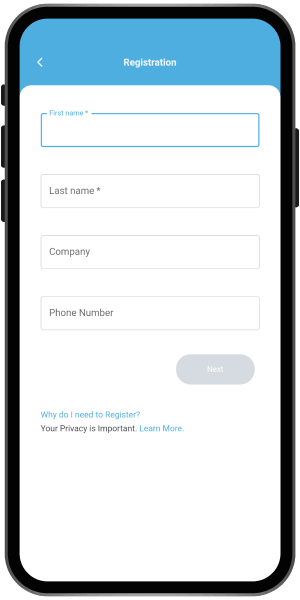
If your carrier requires your booster to be registered, the Cel-Fi WAVE app will guide you through the process as soon as you connect to your device.
The setup is simple. You'll be asked to enter basic information like your name and address. The app will automatically collect key network condition details captured by your Cel-Fi unit during registration.
Registration is sometimes required to meet carrier and FCC guidelines. It helps ensure your booster is operating properly and not interfering with nearby cellular networks.
If registration isn't required, you'll have the option to skip it and continue with setup.
Dashboard Overview
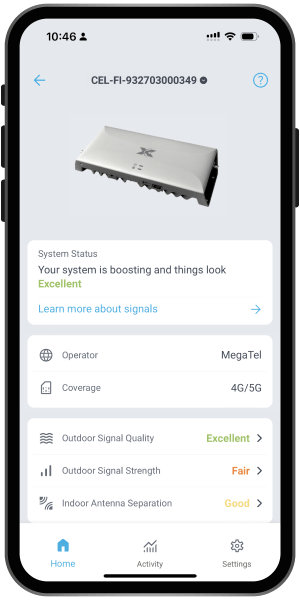
The dashboard is the first screen you'll see when you open the app. It gives you a quick, at-a-glance view of how your system is performing.
From here, you can see which carrier and network are being boosted, along with key details like signal strength, signal quality, and antenna separation. If you want to dig a little deeper, you can tap into each of these sections for more information and helpful tips on how to improve performance.
Select and Switch Your Network Operator
Cel-Fi systems are designed to boost one carrier at a time, which helps deliver stronger, more focused performance.
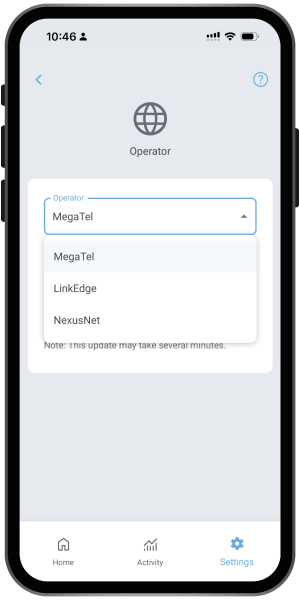
With the WAVE app, you can choose which carrier you want to amplify directly from your phone. If you ever switch carriers, there's no need to replace your system. You can simply update the selected operator in the app.
To switch network operators, go to Settings, tap Operator, and select your preferred carrier.
Switch Between Mobile and Stationary Modes
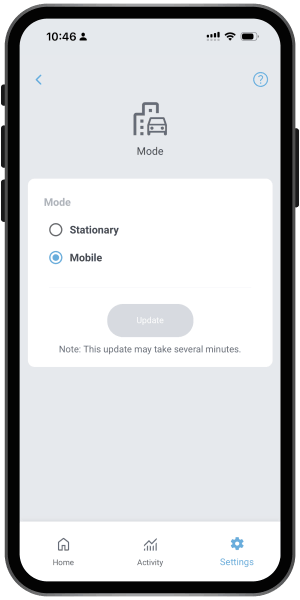
On select Cel-Fi GO models like the GO G31 or GO G32 (now discontinued), you can switch between mobile and stationary modes depending on how you're using your booster.
Mobile mode is designed for use in vehicles, while stationary mode is intended for fixed locations like homes, offices, or stationary RVs. Each mode adjusts the system's power to stay within FCC guidelines and optimize performance for that environment.
To switch modes, go to Settings, select Mode, choose Mobile or Stationary, and tap Update.
Find the Best Direction for Your Antenna
The performance of your cell phone signal booster starts with how your outside antenna is positioned. Even a small adjustment can make a noticeable difference.
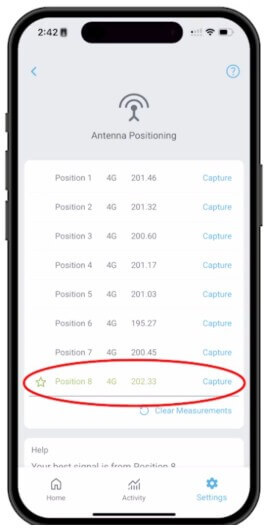
If using a Cel-Fi supplied mounting bracket, you can use the antenna positioning test to take the guesswork out of aiming with the WAVE app. The app walks you through capturing signal measurements in eight directions, then analyzes the results and recommends the best position for optimal signal.
Watch a video here to see how the antenna positioning test works in real time.
When you're ready to get started on positioning your antenna, go to Settings, tap Antenna Positioning Test, and follow the prompts to measure each position.
Customize Boosted Bands and Channels
By default, Cel-Fi systems automatically select the best bands and channels to deliver the strongest possible signal, so there's usually nothing you need to adjust.
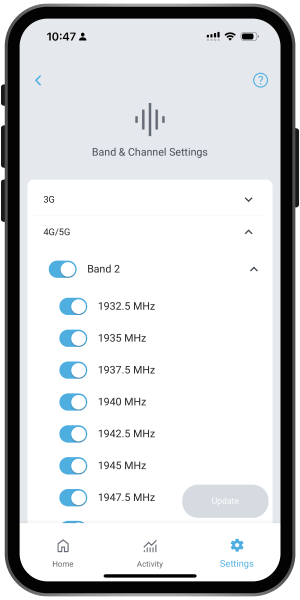
On supported models, the WAVE app does give you the option to manually choose which bands or channels are boosted. This level of control is typically used by cell phone booster installers or advanced users in more complex setups.
If you're not familiar with these settings, it's best to leave them as is. Changing them can limit which signals your system is able to capture and amplify.
If needed, you can access these controls by going to Settings, then Band & Channel Settings, where you can toggle specific networks, bands, or channels on or off.
View Booster Activity
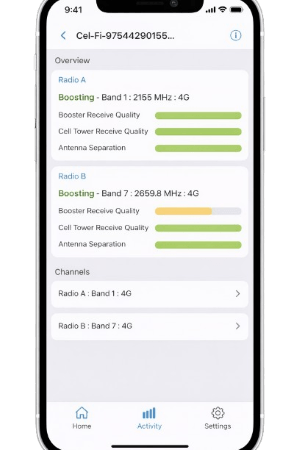
In the Activity tab, you can access more detailed, real-time information about how your system is performing.
This includes signal metrics broken down by each boosted channel, along with the overall device status. If something isn't working the way it should, this section can help you better understand what's going on and pinpoint potential issues.
Update Booster Software
Nextivity occasionally releases software updates to keep your system compatible with evolving cellular networks and performing at its best, similar to how your phone receives updates over time.
These updates help extend the life of your booster and improve performance without needing to replace your equipment.
To check for updates, go to Settings, tap Software Version, and select Update if a new version is available.
Access Help and Support Resources
The WAVE app also includes a built-in help section with useful resources for all Cel-Fi devices.
You can find install guides, antenna positioning tips, troubleshooting support, error code explanations, FAQs, registration help, and a general introduction to cellular signal.
Take Control of Your Signal with Confidence
The Cel-Fi WAVE app makes it easier to set up, monitor, and maintain your booster without the guesswork. From checking your signal in real time to fine-tuning your setup and keeping your system up to date, it gives you the tools to get the most out of your equipment.
Whether you're installing a new system or improving an existing one, the app helps you understand what's happening and make adjustments with confidence.
If you have any questions or want help getting the best performance from your setup, give us a call at 1-800-470-6777. Our signal experts are here to help.